
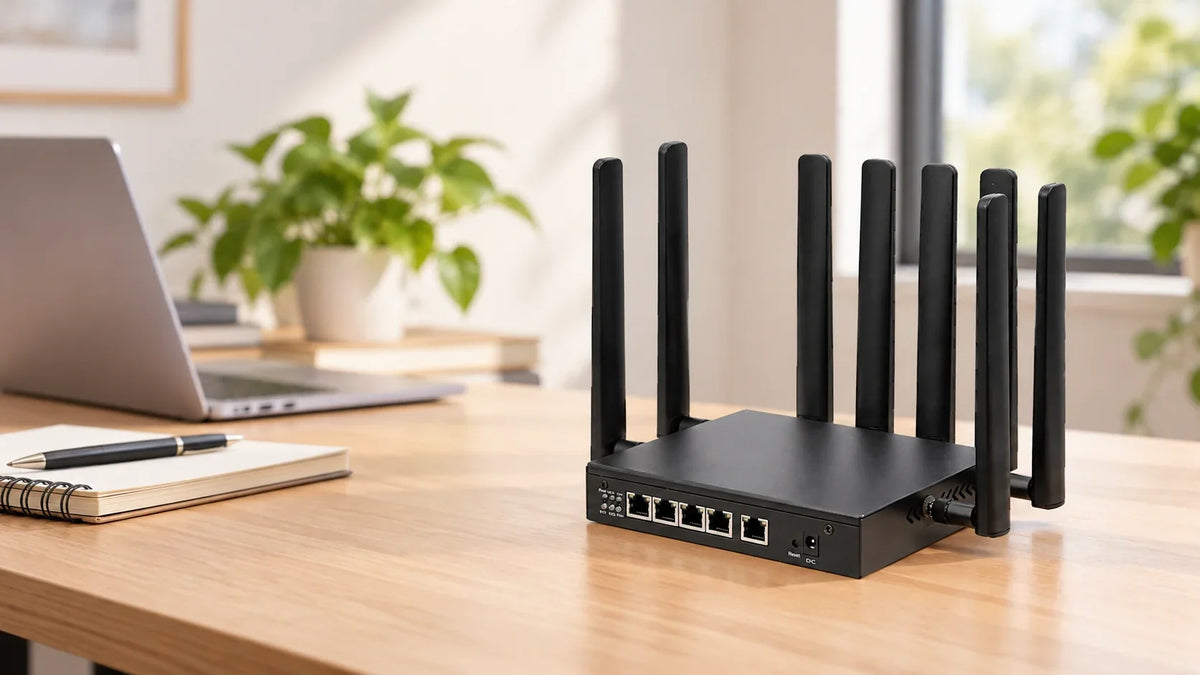
Cover: WS1699 in an illustrative office setting, generated from product photography.
You’re choosing a 5G router for a small office. You want a second mobile network available in case the first one lets you down. A router with two SIM slots looks like the obvious choice—until you notice that another model also has two SIM slots, but is described as “dual modem.” What would that change for your office?
The useful question is what happens to your connection when you need the other network. Is the second SIM waiting to be activated, or is a second cellular connection already online? That is where these two designs begin to feel different in everyday use.
Dual SIM means support for two SIMs. Dual modem means two cellular modems. In a dual-SIM, single-modem router, one SIM normally provides the cellular connection at a time. Two suitably configured modems can keep two cellular connections active together. Whether your applications stay connected during a changeover depends on the complete setup.
Let’s look at that distinction, then use the HUASIFEI WS1699 and WS3006 to make it concrete. The examples below concern routers with physical SIM slots.
Dual SIM vs. dual modem at a glance
| Your question | Dual SIM, single modem | Dual modem |
|---|---|---|
| How many cellular connections? | One at a time in this design. | Two can be active with suitable installed modems and configuration. |
| What is the second SIM doing? | Providing another subscription for the same modem to use. | It can serve a second modem with its own connection. |
| What happens during a changeover? | The modem selects the other SIM and establishes its cellular connection. | Traffic can move to the other connection if it is already usable. |
| What still needs attention? | How SIM switching works and how long the application takes to recover. | Traffic policies and application recovery, even with both links connected. |
What the second SIM actually gives you
A SIM provides access to a subscription; the cellular modem makes the radio connection. Put two SIMs behind one modem and you have a choice of subscriptions, rather than two separate connections. This is the architecture described in Ericsson’s comparison of dual-SIM modems and dual-modem routers.
That choice can be useful on its own. You might want another carrier available without visiting the site to replace a card, or a different data plan for a particular location. When it is time to change SIMs, however, the modem still has to establish service using the selected subscription.
SIM A or SIM B → one modem → one cellular connection
SIM A → modem A → connection A
SIM B → modem B → connection B
Automatic switching is a firmware feature, so it is worth asking what triggers a change and when the router switches back. GL.iNet’s documentation, for example, explains that detecting a failure and activating the other SIM both take time. The settings and timing are specific to that implementation, but the distinction is useful when discussing any single-modem setup.
With two modems, each can establish its own connection. The second link can therefore be online before you need it. This gives you more choices about how traffic travels, provided the supplied firmware supports the policy you want.
Failover, load balancing and bonding: what changes for you?
Imagine the primary connection stops reaching the internet while someone is working through a VPN. Failover moves traffic to another usable path. Having a second modem already connected can save the wait for that modem to register, but the router must still detect the failure and change the route. The VPN or application may also need to reconnect.
That is why “the backup is working” and “the call never dropped” are different outcomes. A changed public IP or routing path can interrupt an existing session even when a new browser page opens successfully. Choose your acceptance test around the work people need to finish.
Now consider several devices using the network at once. Load balancing can distribute their connections across available links according to a policy. It may help the network use both links, but it does not automatically make one download twice as fast. OpenWrt’s mwan3 documentation makes this distinction explicit: its balancing works per IP connection, rather than bonding channels.
Bonding needs a specific implementation that can combine paths for the traffic concerned. If that is what your project needs, ask for the solution by name and see it demonstrated. Two modems and a “multi-WAN” description are not enough to establish that bonding is included.
Choose around the interruption you can live with
Start with the application. If it can wait for a connection to be re-established and you only need one cellular link at a time, a dual-SIM, single-modem router may be a sensible candidate. The next step is to measure whether its switching behavior fits the downtime your operation can accept.
If you need both cellular paths online together—for example, to route different traffic through separate carriers—look at a dual-modem configuration. Be specific about that requirement when requesting a sample. “Two SIMs” leaves too much open to interpretation.
Also think about what could take both connections down. Two SIMs cannot help a router that has lost power. Two subscription brands may share an underlying mobile network. And if the site already has wired broadband, wired internet with cellular backup may cover the need without a second cellular modem. The best fit becomes clearer once you consider the whole connection, rather than the router alone.
How WS1699 and WS3006 put this into practice
These two HUASIFEI models illustrate why it pays to read SIM count and modem count separately.

WS1699
Two SIM choices, one cellular modem.
Explore WS1699 specifications

WS3006
A platform for two configured cellular modems.
Explore WS3006 specifications
| Model | Cellular architecture | Ethernet | Discuss before ordering |
|---|---|---|---|
| WS1699 | 2 × Nano SIM sharing one modem; 1 × M.2 module interface. | 1 × Gigabit WAN + 4 × Gigabit LAN. | The installed modem and the supplied firmware’s SIM selection or switching behavior. |
| WS3006 | 2 × Nano SIM on a dual-module platform. Installed modems depend on configuration. | 1 × 2.5GbE WAN/LAN + 3 × Gigabit LAN. Firmware determines the 2.5GbE port’s role. | Module models and quantities, simultaneous connectivity, and the traffic policy you need. |
WS1699 offers two SIM choices on one cellular modem. WS3006 is the platform to discuss when your design calls for two modems. For reference, WS1698 is a single-SIM, single-modem model.
When you settle on a model, ask for the exact modem configuration in the quotation. If you choose No modem, you will need to supply and configure a compatible cellular module before using mobile data. For modem-equipped options, check the module’s bands and the carrier’s requirements for your country and plans. The regional label is a starting point for that conversation. Ethernet and Wi-Fi ratings describe other parts of the connection; your cellular speed will also depend on the mobile network.
Test the interruption before you scale up
A useful evaluation goes beyond checking that both SIMs can get online. Run the proposed configuration through the moment you are buying it to handle. Use the following steps to see how your chosen setup behaves.

- Use the intended setup. Record the hardware revision, modem models, firmware, SIM assignment, carriers, APNs, antennas and power supply. This makes the result useful when you discuss the production configuration.
- Run the real application in a test environment. Keep a VPN, monitoring session or other relevant connection active. Then introduce a controlled primary-link failure. Include a case where the link remains registered but cannot reach its destination.
- Watch the work recover. Record when the fault began, when the alternative path became usable, and when the application resumed. Note reconnects, public-IP changes and failed operations. A responding ping alone cannot answer all of those questions.
- Bring the primary link back. Observe whether traffic returns, stays on the backup or switches repeatedly. Repeat the test, retain the logs, and power-cycle the router to confirm that the intended settings persist.
If load balancing is part of the proposal, also watch several independent connections as well as one connection. This helps distinguish the traffic policy from a single speed-test score. For a larger rollout, agree on acceptable recovery behavior before signing off the sample.
A few questions that come up during selection
Can a dual-SIM router use both SIMs at the same time?
It depends on the modem architecture. WS1699 uses one SIM at a time. Two simultaneous cellular connections need a suitable modem configuration and firmware, not simply two slots.
Does a dual-modem router double internet speed?
Not automatically. Supported load balancing can share different connections across links. Combining capacity for one connection requires an appropriate aggregation solution; real performance still depends on the networks and configuration.
Does an OpenWrt platform include the failover features I need?
The platform name alone does not answer that. Ask about the supplied firmware and modem integration. Upstream mwan3 documentation is a useful reference, but does not establish that a particular HUASIFEI build includes it or has upstream OpenWrt support.
What should I send with a project inquiry?
Tell us the country, carriers, number of simultaneous cellular links, wired connections, power conditions and expected quantities. Most helpful of all: describe what the application must do when a connection fails.
Talk through your deployment
Take a closer look at WS1699 or WS3006, then share your project with HUASIFEI. You do not need to arrive with every setting decided. A clear description of the job the network must support gives us a useful place to start.
Business inquiries are open. Online retail ordering is not yet available.