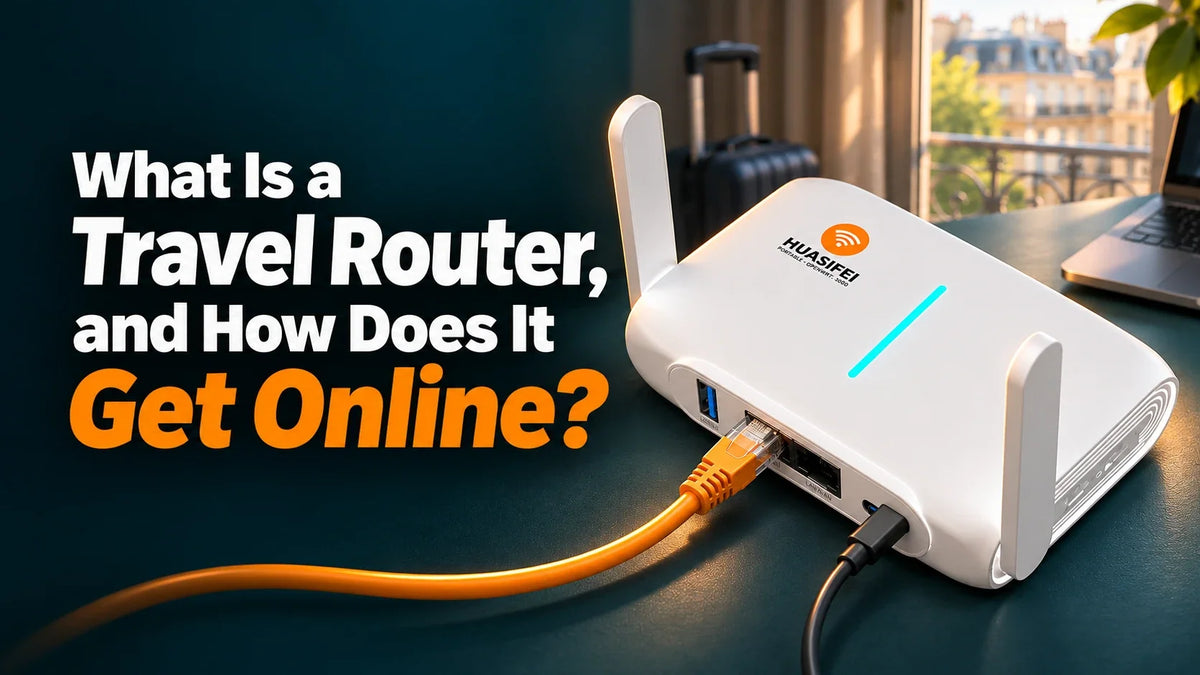
A travel router gives your devices a Wi-Fi network you can take from place to place. To get online, it shares an internet connection available at your destination. That might be a wall socket, Wi-Fi the router can join, or mobile data if the hardware supports it. You can keep the same Wi-Fi name and password for your own devices whichever connection you use.
How does a travel router work?
Imagine arriving at a rental with a laptop, a phone and a streaming stick. They already know the Wi-Fi name you set up on your travel router at home. Plug it in, give it an internet connection, and all three can reconnect without your having to type a new password into the TV with a remote.

You can try this at home. With your laptop on the router’s Wi-Fi and Ethernet as its only internet source, unplug the cable from the wall. You can still open the router’s local settings, even though a new website won’t load. Full Wi-Fi bars tell you how well your laptop can hear the router. If the hotel connection is slow or crowded, you can see full bars and still have a choppy video call.
If the room has Ethernet, which port do you use?
Ask the host whether the room has an active Ethernet jack and whether guests may connect a personal router. If so, run a cable from the wall to WAN on the router. Plug a wired device, such as a console, into LAN. Your phone can use the router’s Wi-Fi at the same time.
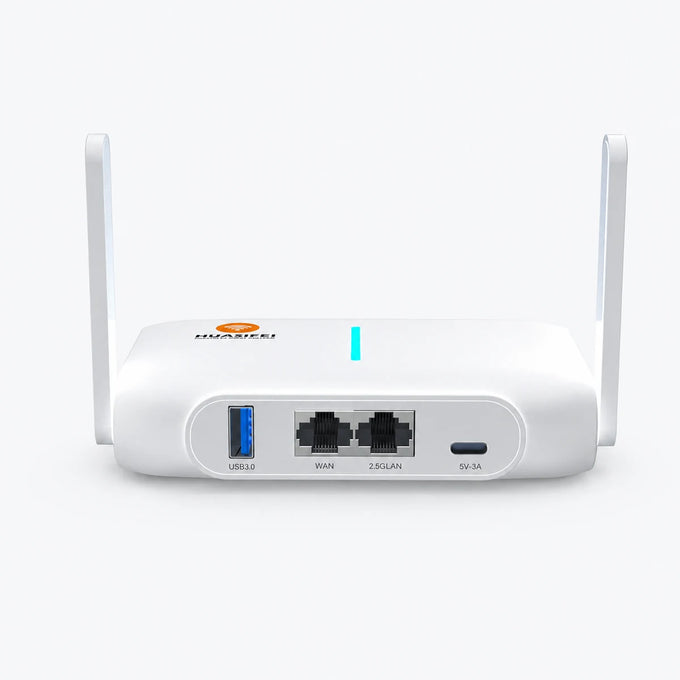
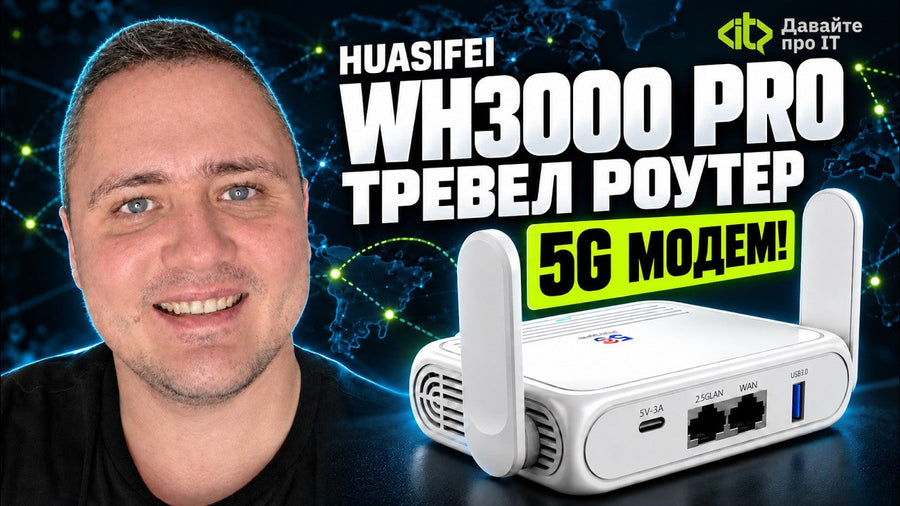
The WH3000 port layout and specifications show one Gigabit WAN and one 2.5GbE LAN. If both your console and laptop need a cable, a small Ethernet switch on the LAN side gives you more sockets. Neither the switch nor the faster LAN port increases the speed you get from the property.
Can a travel router use hotel Wi-Fi with a sign-in page?
A guest who spent months in hotels described carrying a laptop, tablet and Roku. At one property, even guests who plugged into Ethernet had to enter a code in a browser. That extra sign-in page is called a captive portal. It explains how you can be connected to the hotel network and still be unable to open a website. Read the traveler’s account.
For a Wi-Fi-only room, check that your router’s firmware can join another Wi-Fi network as its internet source. A manual might call this wireless WAN or WISP mode. Ask the hotel whether personal routers are allowed and how to register one. For more on why a portal can limit access, see the IETF’s description of captive portals.
If the hotel supports browser sign-in through your router, join your router’s Wi-Fi on a phone or laptop and follow the hotel’s instructions. If the sign-in page never appears, ask the desk for the supported connection method before relying on it for a call.
Why can my phone browse but not find my streaming stick?
Some hotel and dorm networks let each guest reach the internet while keeping guests’ devices from seeing one another. This feature, called client isolation, can also keep your phone from discovering your own streaming stick. Google explains how isolation affects Cast devices.

Where personal routers are allowed, connect both devices to your router’s main network with device-to-device communication enabled. Use a password you share only with your group. If keeping other guests off your local network matters, use router mode and check the firewall settings, since a bridge can put devices on the venue’s network. A hotel-managed TV on a different network is a separate case. Check the room’s casting instructions for that TV.
Only bringing a Roku? On supported models, you can use a phone or laptop to finish the hotel sign-in for the Roku itself. That may be all you need for the trip. Check Roku’s Hotel & Dorm Connect guide.
When is a phone hotspot enough?
For a train ride with one laptop, try your phone first. Check that your mobile plan allows tethering and has enough data for the trip. On an iPhone, Personal Hotspot shares the phone’s cellular connection, so joining the hotel’s Wi-Fi on the phone won’t pass that Wi-Fi connection on to your laptop. Apple’s Personal Hotspot guide.
A separate router earns its place when someone needs to stay online after you leave with your phone, or when you take several devices from one rental to the next. At a site without usable Ethernet or Wi-Fi, that router will need its own mobile connection. The standard WH3000 has no built-in cellular modem. For the WH3000 PRO, compare the modem configurations against your destination and carrier. To use cellular service, choose a version with a compatible modem and bring an active Nano SIM. The “No modem” configuration needs additional hardware to use a SIM.
Do you need a SIM or a monthly subscription?
For a hotel’s Ethernet or Wi-Fi, you don’t need a SIM or a separate cellular plan. The venue sets its own access fees and device limits. For mobile data, your phone’s hotspot uses your phone plan. A router connected directly to a carrier uses the plan on its own SIM. Check roaming and hotspot allowances before a trip abroad.
What should you check before you pack?
- Ask about the room. “Is the Ethernet jack active? Can guests bring a router? How do I sign in?” Those answers will tell you whether to pack a cable or arrange mobile data.
- Test the kit you’ll actually carry. Pack the power supply as well as the router. The WH3000 PRO has no built-in battery and needs compatible USB-C power. For a cellular trip, disconnect wired WAN during your test and open a new website on your laptop.
- Try the thing you’re traveling for. Start a cast from your phone, join a test call, or plug in the console. You’ll learn more than you would from the Wi-Fi icon alone.
Compare HUASIFEI travel routers by connection type or get an email when retail ordering opens. Equipping a team? Tell us where the routers will be used, what internet source is available and how many wired devices each kit needs.